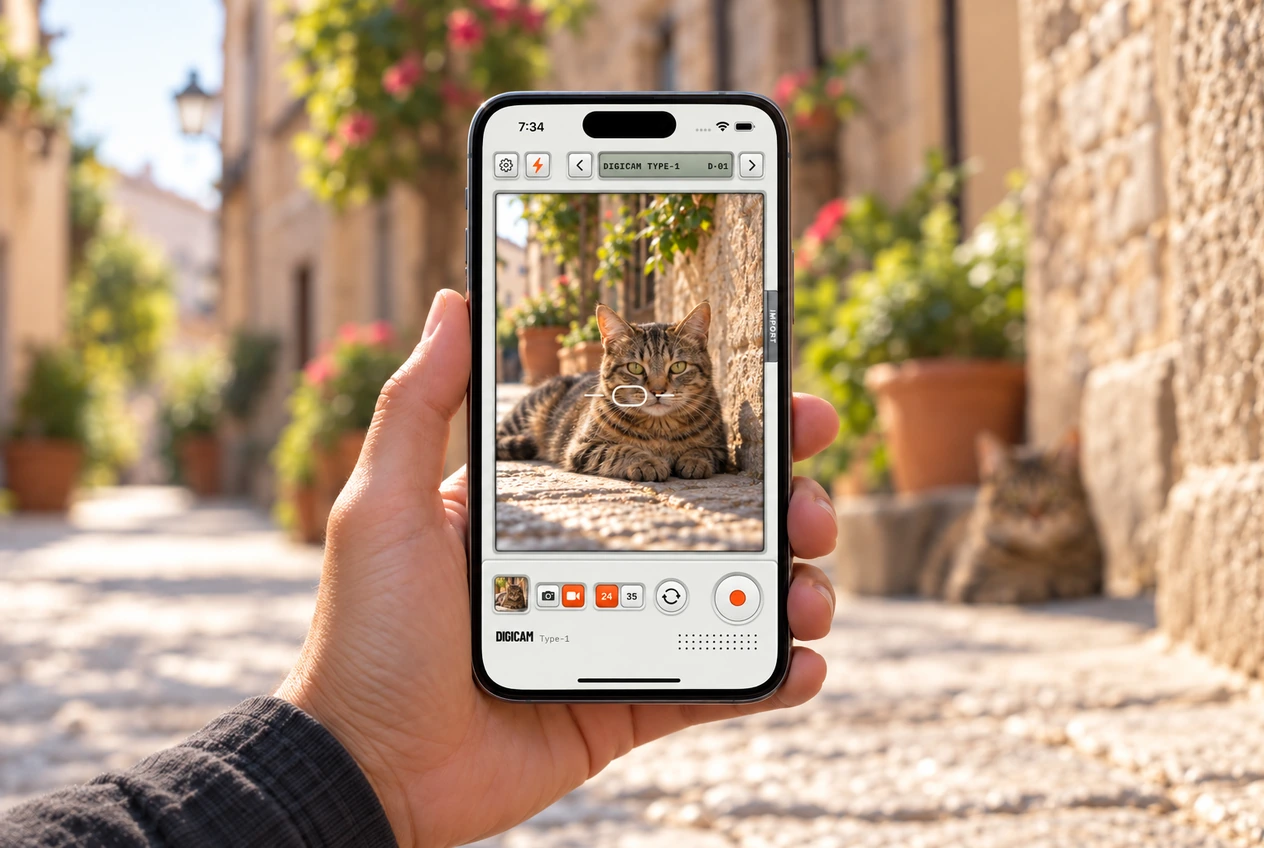
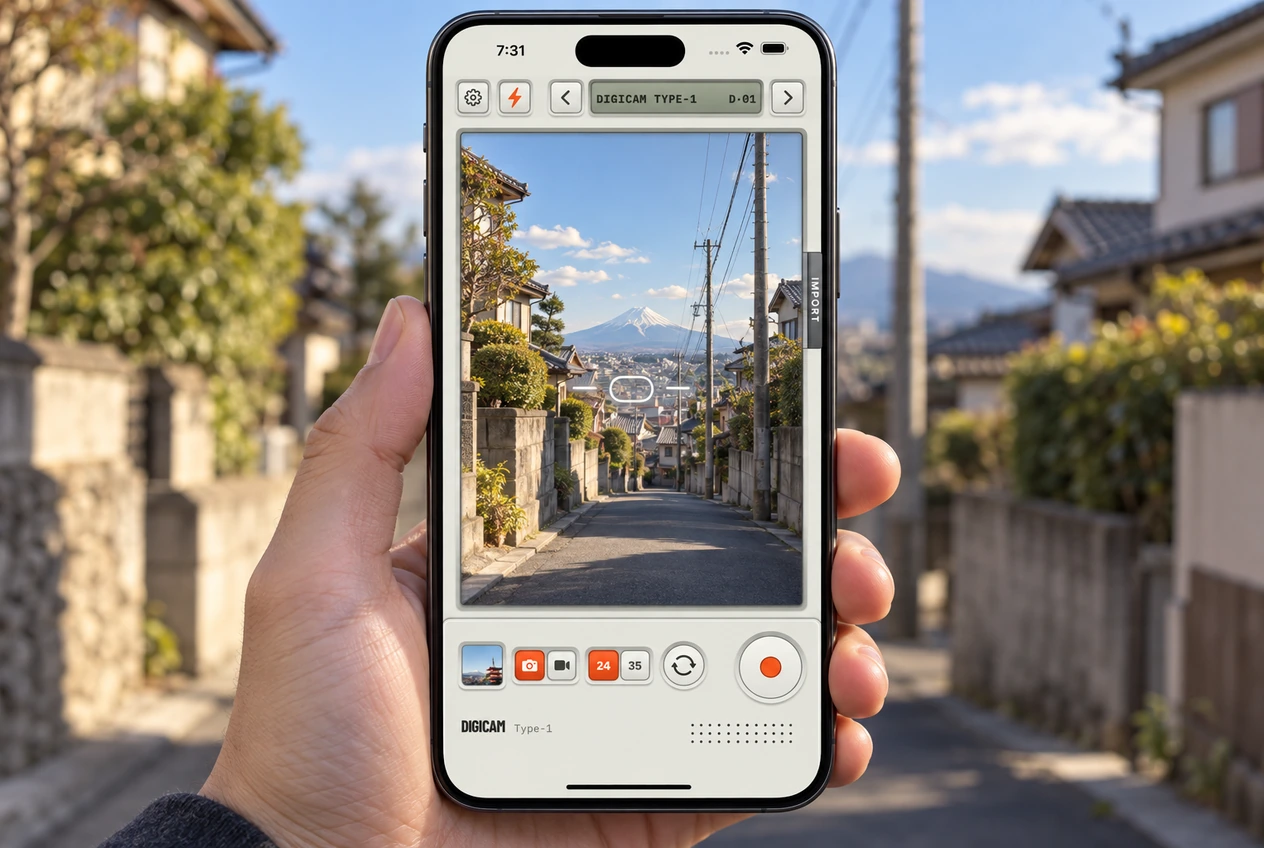
The film selector is at the top. The orange button takes the shot. Learn those before your friends squeeze into frame. A few familiar controls make it easier to get the shot while everyone’s still laughing.

The controls, top to bottom

Settings
The gear, top left. Camera sounds, Film Recipes, and the legal documents.
Flash
The bolt beside Settings toggles the flash for photos.
Film selector
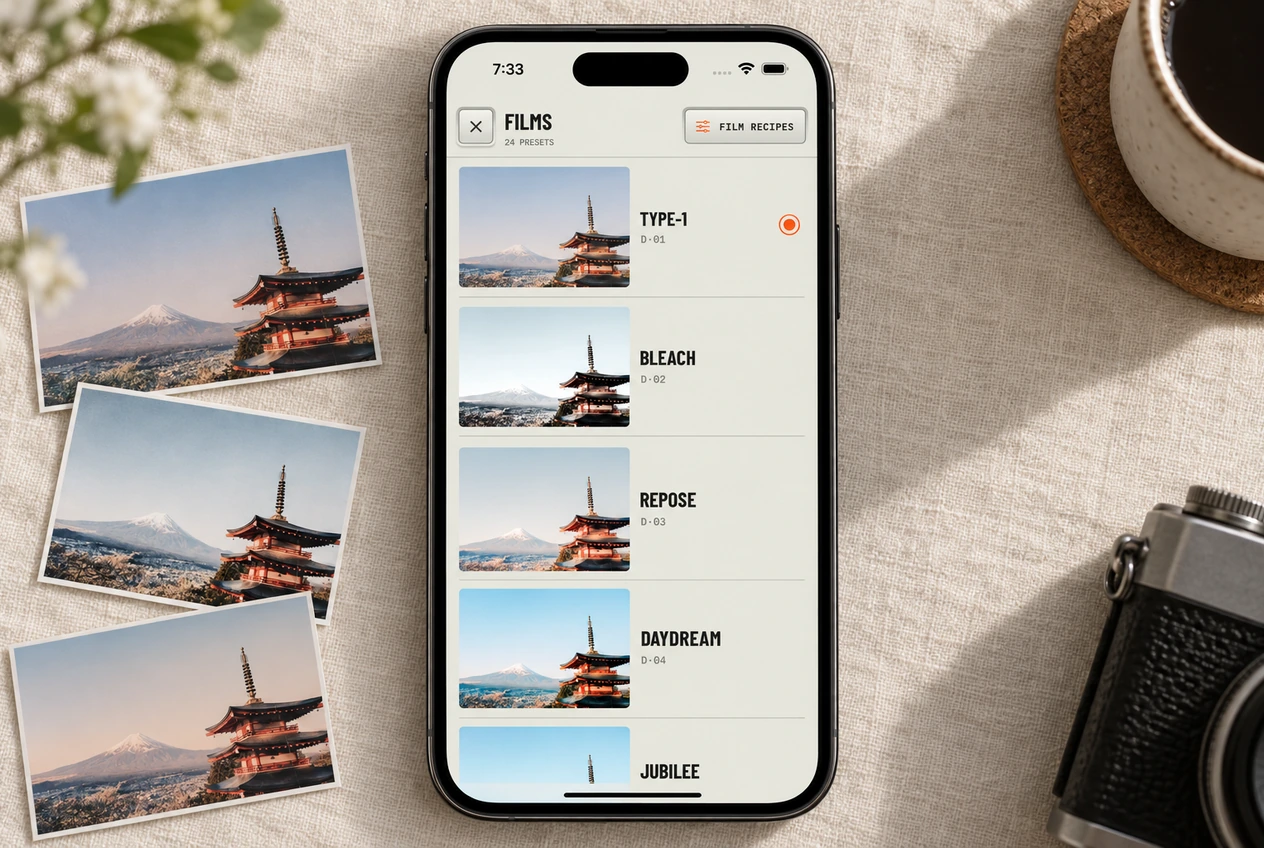
The strip across the top. Arrows step through the 24 films. Tap the name to see them all.
Import
The tab on the right edge. Brings in a photo from your library to edit.
Last shot
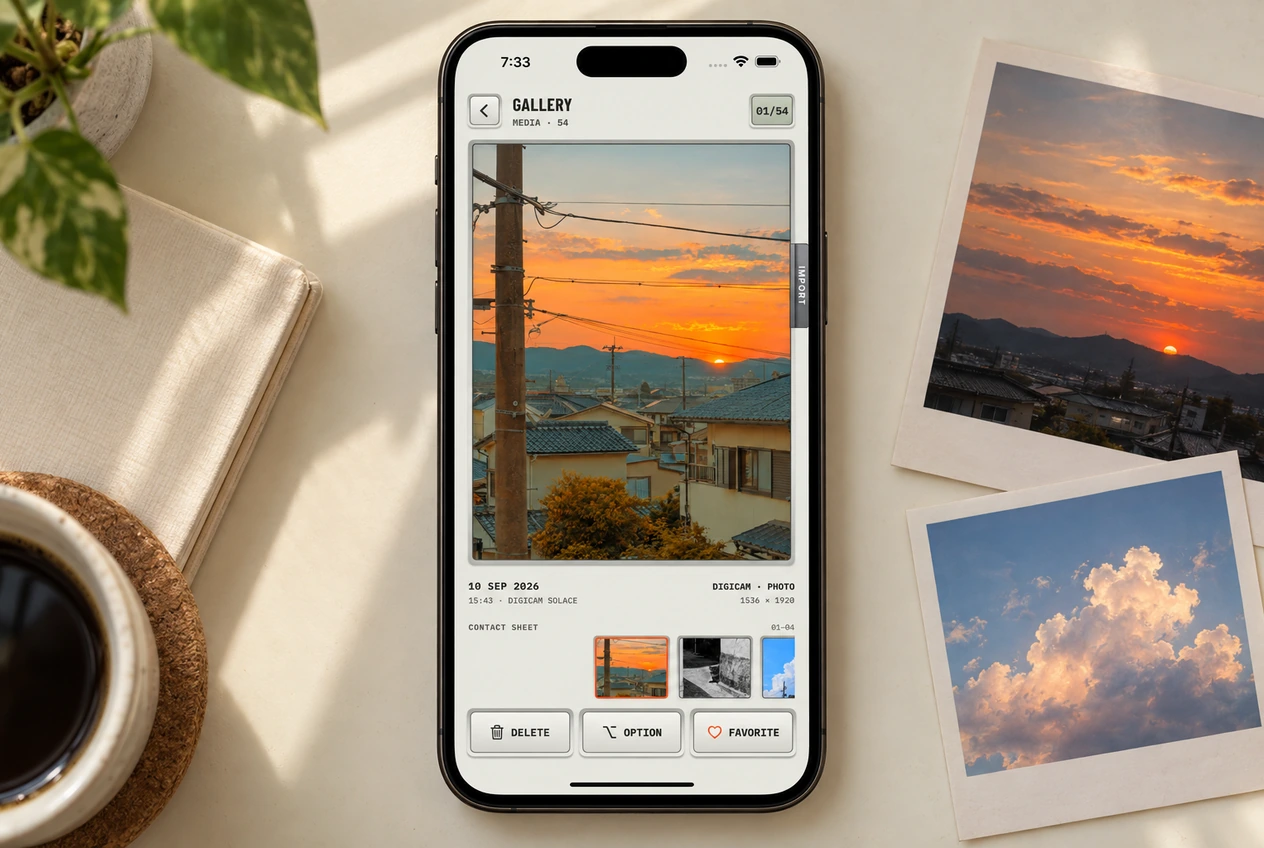
The thumbnail, bottom left. Opens the gallery.
Photo or video
Pick one. Both get the film.
24 or 35
The framing toggle. 24 is wider; 35 brings the subject closer in the frame.
Flip
Front or back camera.
The orange button
Takes a photo in photo mode. In video mode, press it to start recording and again to stop.

Pick a film without losing your frame

The arrows step through the films one at a time and the viewfinder changes with each one, live. Tap the film name and you get all 24 on one screen. There is more on this in choosing a film.

Keep the camera pointed at the same scene while you compare. Look at a face, a patch of sky or something white. Those give you a better sense of the change than the film’s name alone. Your saved recipe is used too, so a film you’ve tuned may look different from its original setting.

What do 24 and 35 mean?

They are two framing choices. At 24, more of the room or street fits into the shot. At 35, the view is tighter. Digicam uses a zoom change for that tighter view; the button doesn’t add a separate physical lens to your phone. Both choices work for photos and video.

Try 24 for a group around a table or a building across the street. Try 35 when you want less of the background around one person. Check the edges after switching so you don’t cut off a hand or the top of someone’s head. Moving your feet changes the composition too.

Set up for a night out

Pick a film before the group shot and start at 24 if several people need to fit. Try the flash for a nearby person against a darker room; take another with it off if you want to keep the colored lights. Flash won’t light a whole venue or a distant stage. Use Flip for a selfie, then check the edges of the frame again.

Take a quick test photo when you arrive. Once the framing and look feel right, you can spend less of the evening explaining buttons and more of it taking pictures. Turn down the camera sounds in Settings if you want quieter clicks.

Where the photo goes

Straight into your camera roll, in an album called Digicam. The thumbnail at the bottom left opens the gallery.

Import goes the other way: it brings a photo from your library into the editor. Use it when you already have the shot and want to try a film on it. To take something new, stay in the camera and follow the photo and video walkthrough.

If the viewfinder won’t open

Check that Digicam has camera permission in your iPhone’s Settings. The gear inside Digicam controls the app’s sounds and recipes; iPhone Settings controls access to the camera and library. The permissions guide explains which access each feature needs.