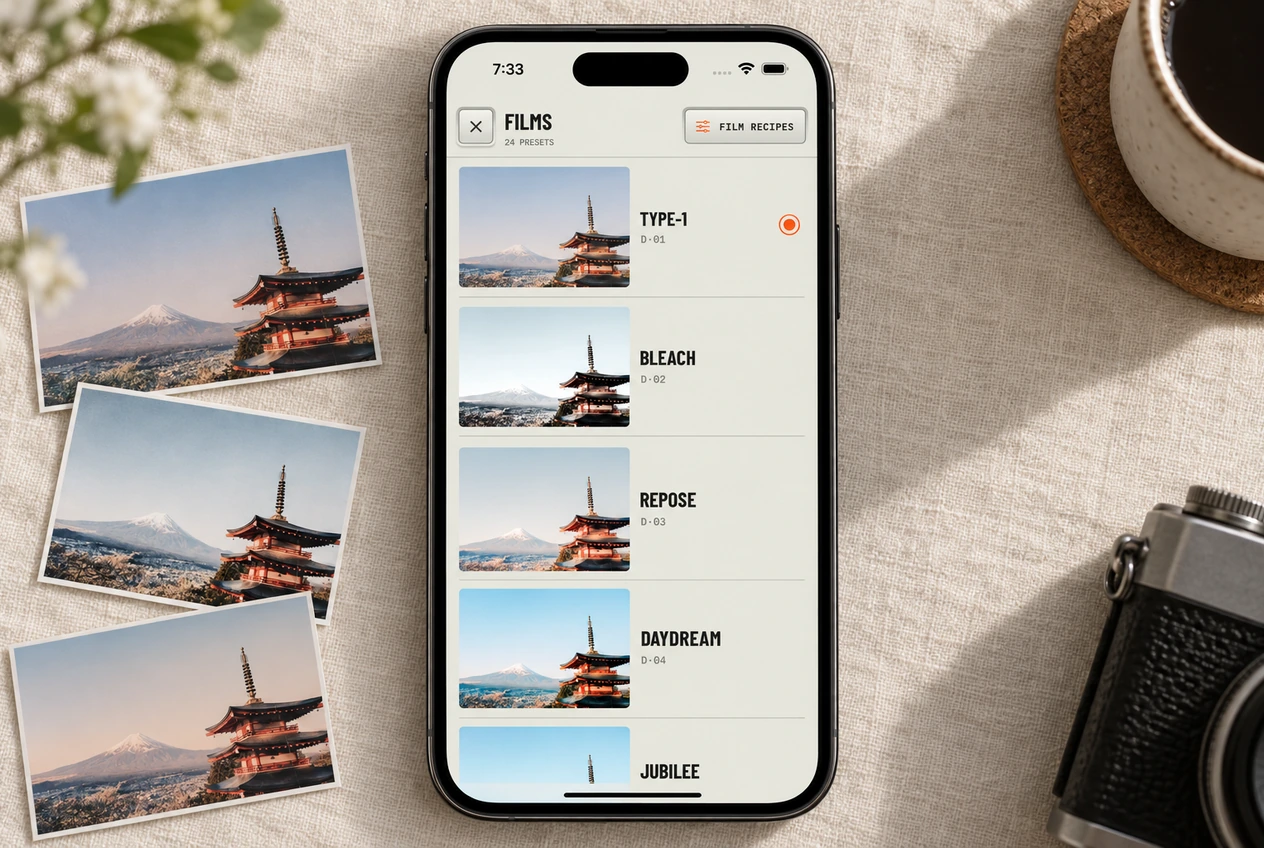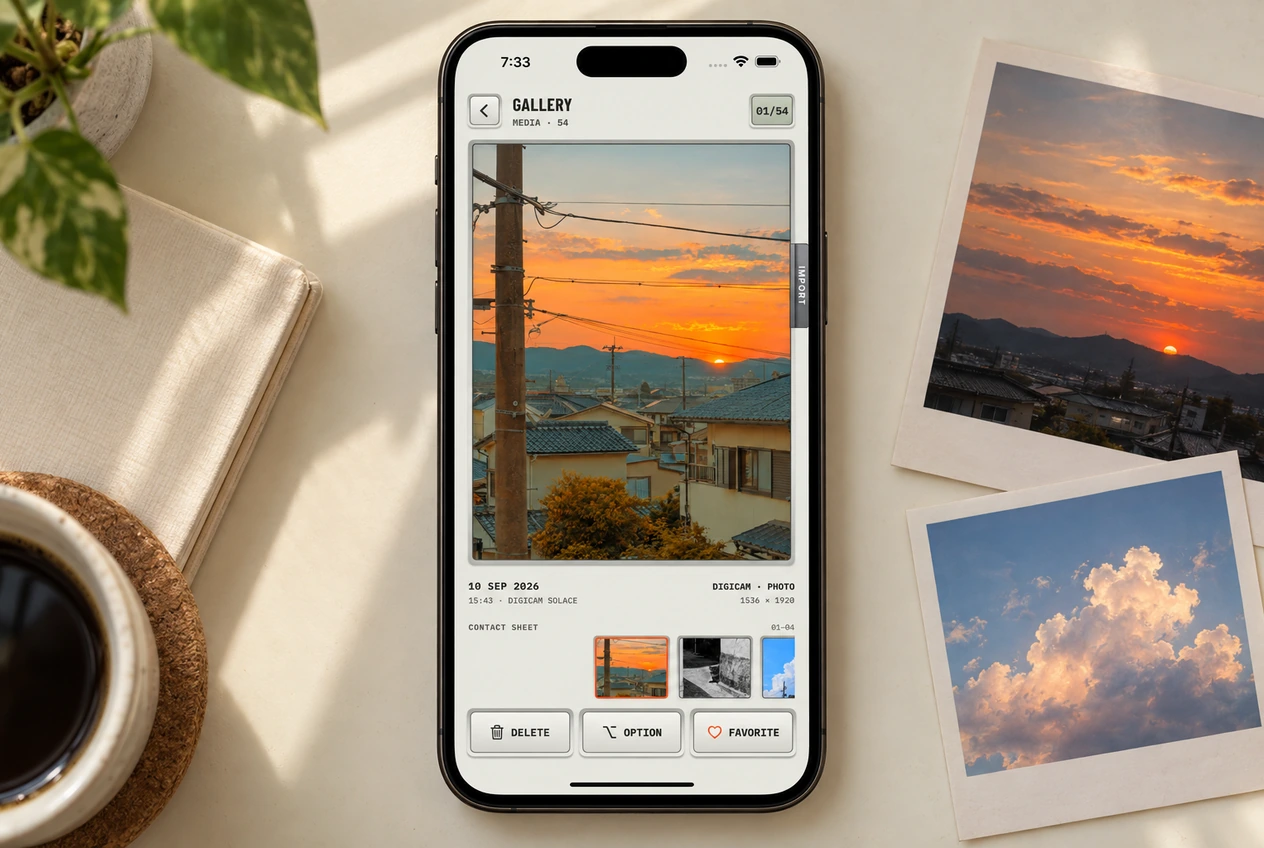
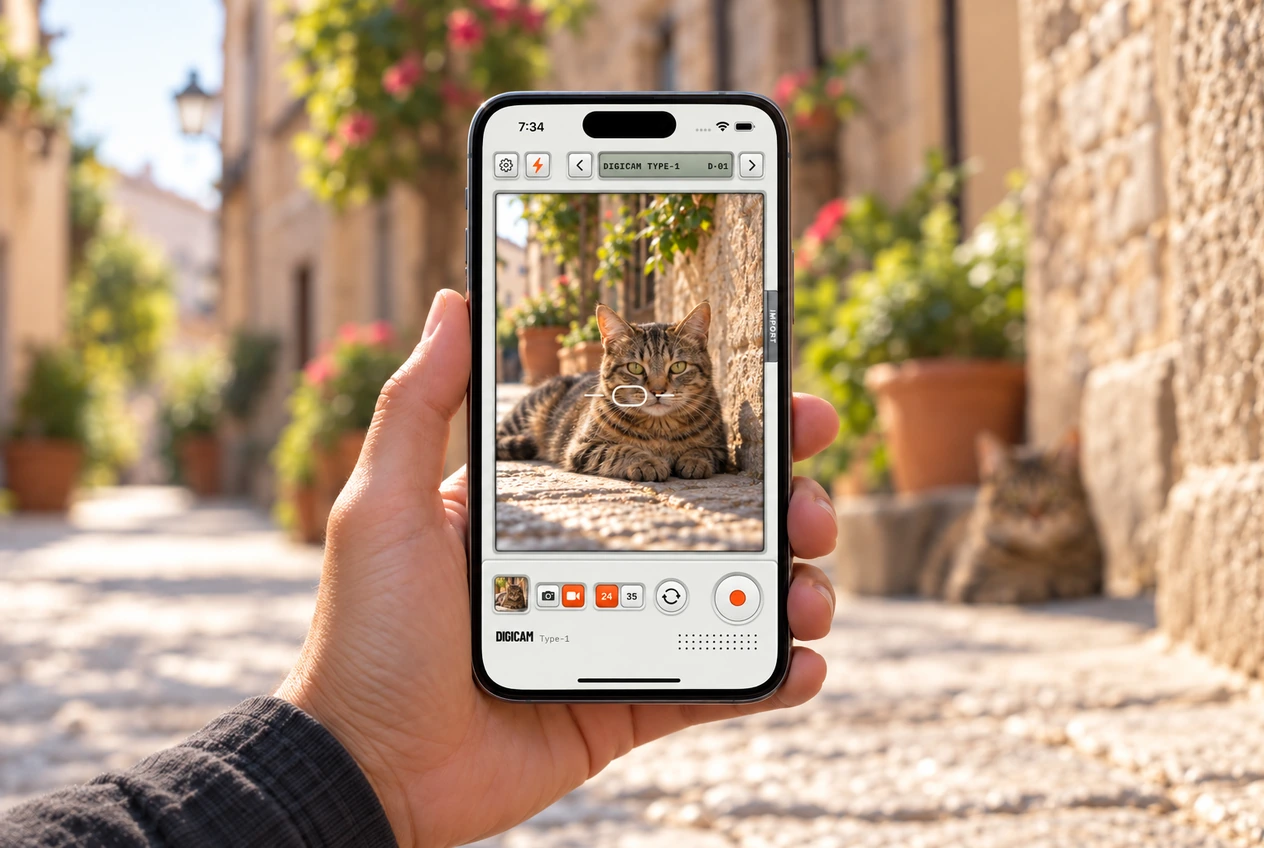
Choose a film before you shoot and Digicam saves the photo or video with the look applied. A few photos and a short clip can tell the same afternoon differently. Use the same film for both and you have the start of a photo dump or a little video diary before you open a social app.

Take a photo with the film already on it

  1. Choose photo mode, then pick a film with the selector at the top.
  2. Frame the shot. Use 24 for the wider view or 35 to bring it in tighter.
  3. Decide whether you want flash for the photo, then press the orange button.
  4. Tap the thumbnail to review the saved image in the gallery.

Keep one film for the first part of the outing. Photograph the place, the people and a detail you’d otherwise forget: the menu, someone’s shoes under the table, the view while you’re waiting. That gives you more to choose from than six versions of the same pose.

Record video with a film look

Switch to video mode and choose your film and framing before you start. Press the orange button to record, then press it again to stop. The saved video carries the selected film look. Allow microphone access when prompted if you want the sound around you recorded with it.

Choose something that benefits from movement: a friend walking into the sea, a train leaving, candles being blown out. Hold still for a moment at the beginning and end so you have room to trim later. For a vertical video diary, compose upright from the start and keep the main action away from the edges, where captions or app controls may sit when you post.

A loose shot list for your next photo dump

  • The place: a wider view that tells you where you were.
  • The people: a group shot, a portrait or the moment someone started laughing.
  • The small thing: a half-finished dessert, the ticket, the bag on the next chair.
  • The movement: a short clip with some of the sound of the day.

Use that as a nudge when you’re stuck, then put the phone down when you have enough. Later, the gallery is where you can choose the set and leave out the repeats.

Where it all goes

Every photo and video goes straight to your camera roll, into an album called Digicam once saving completes. Favorites you mark in the gallery show up as favorites in Photos too.

What can you change afterwards?

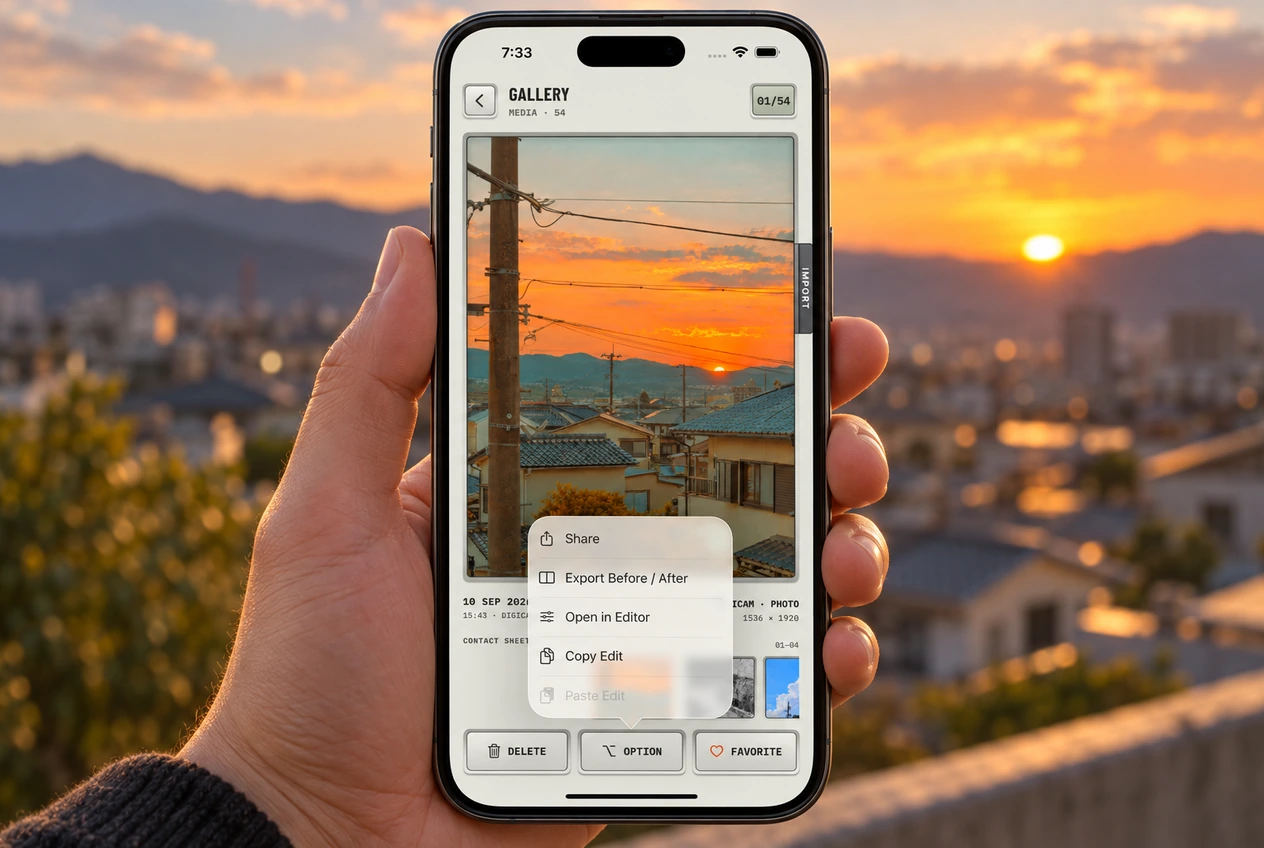
For photos saved by Digicam, the app keeps the original alongside its edit information. You can open a photo in the editor later and choose another film. That photo workflow doesn’t apply to recorded clips: the gallery’s editor and Copy Edit controls are for still photos. Pick the look you want before recording video.

A few things to check before the next shot

  • The edges. A small change in position can remove a distracting bin or keep someone’s hand in the picture.
  • The light on the subject. If a face is too dark, try changing where you stand before choosing another film.
  • The saved result. Check your first photo or play your first clip back. It’s easier to catch a framing or sound problem now than after the whole afternoon.

If saving or recording isn’t working, check the camera, microphone and Photos permissions. For help finding a look, start with the film selection guide.