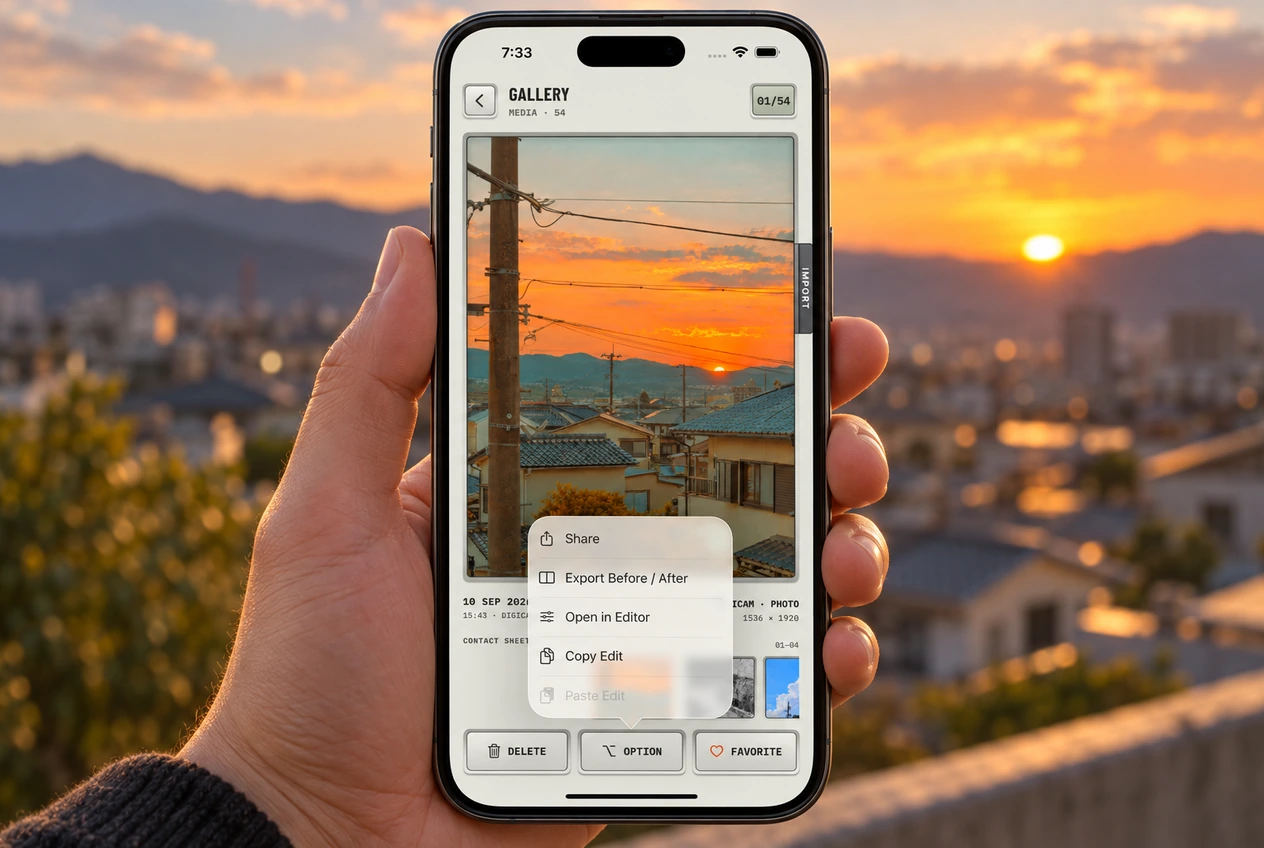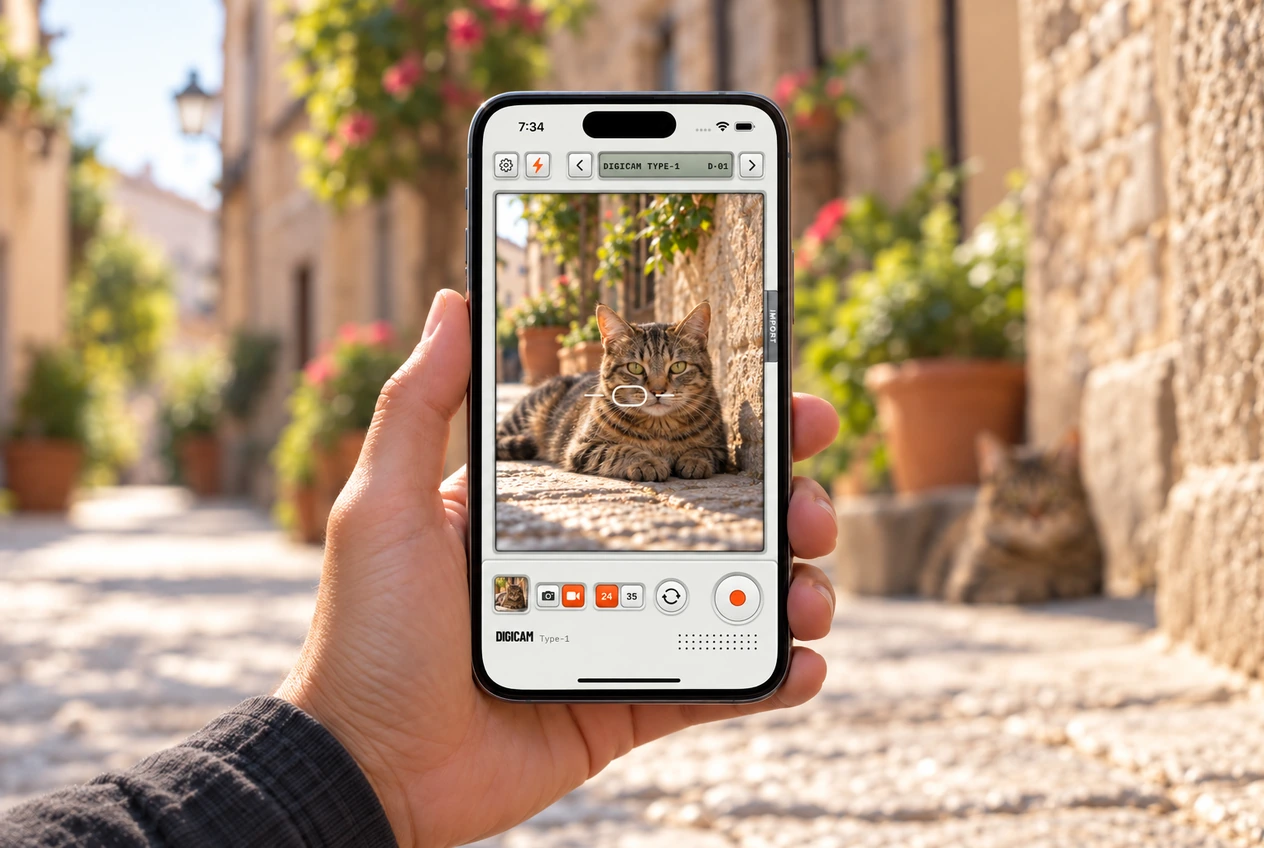
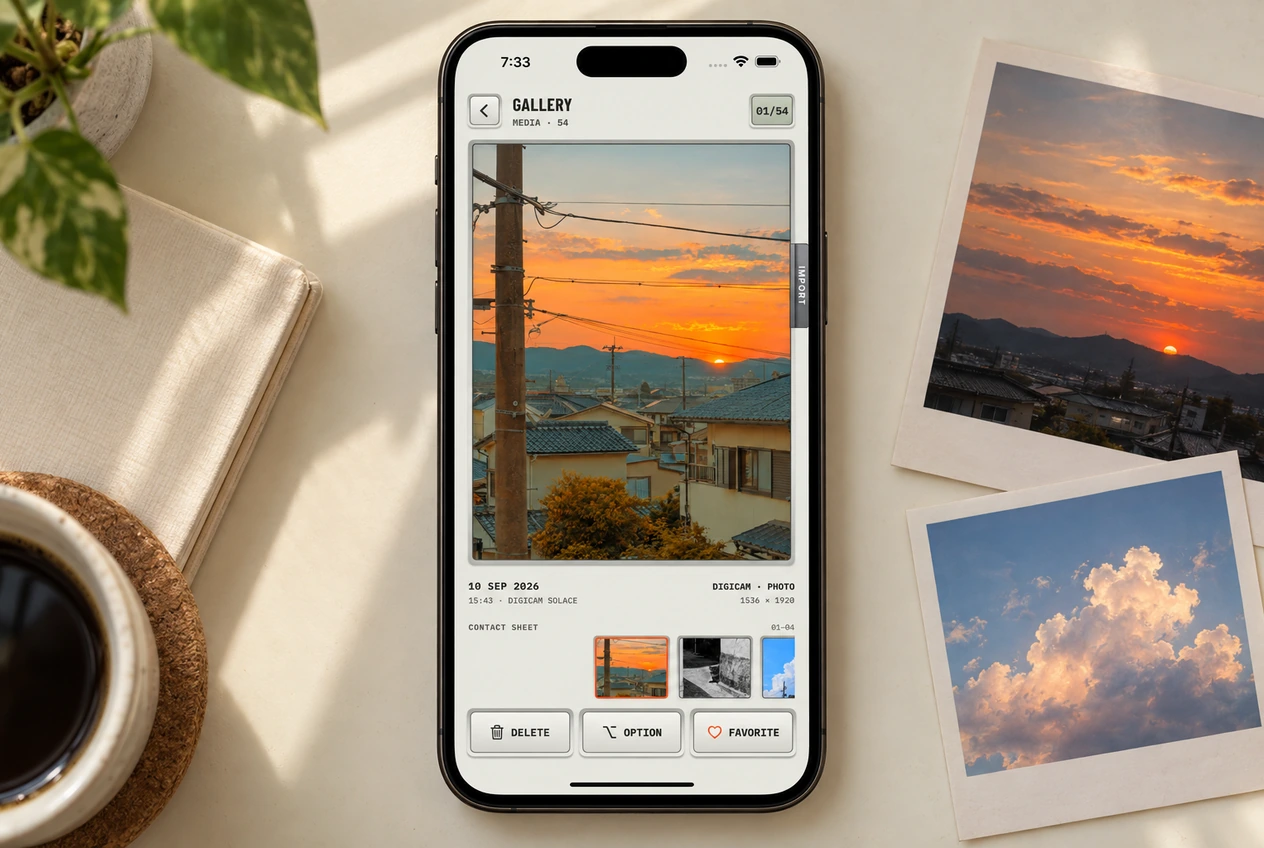
The night out is over. Now you get to see what you caught. Tap the thumbnail at the bottom left of the camera to open the gallery. Use the contact sheet to find the keepers, mark favorites and pull together a photo dump that feels like the time you had.

The contact sheet

Swipe through the strip or tap a frame to bring it into the main preview. You can check the date and film information as you browse, which makes it easier to find the look you liked yesterday. Select a video to play it in the gallery.

With a saved Digicam edit and its original available, hold a photo to see the original, or drag sideways to compare. Pinch to inspect a detail. This is useful when two versions seem almost the same at thumbnail size.

Pick the keepers before you edit everything

Tap Favorite under a photo you want to keep track of. Digicam updates its favorite status in the iPhone Photos library too, so you can find it there later. Go through once for the photos you immediately like. On a second pass, compare the near-duplicates and keep the expression or moment that says the most.

Give your photo dump a little rhythm

Try opening with the photo that makes you want to see the rest. It could be the group shot, but it could just as easily be a strange little detail from the day. Follow a busy frame with something quieter. A table after dinner gives a different beat from another almost-identical portrait.

You might build a set around arriving, being there and heading home. Or let a color connect otherwise different scenes. There’s no required number of slides. Digicam helps you pick and edit the photos; choose their posting order in the social app you use.

Delete also acts on the item in your Photos library. It isn’t just a way to hide a thumbnail from Digicam. If you’re choosing between similar shots, compare them and mark the keeper before deleting.

The Option menu

Share
The photo or video, straight to the share sheet.
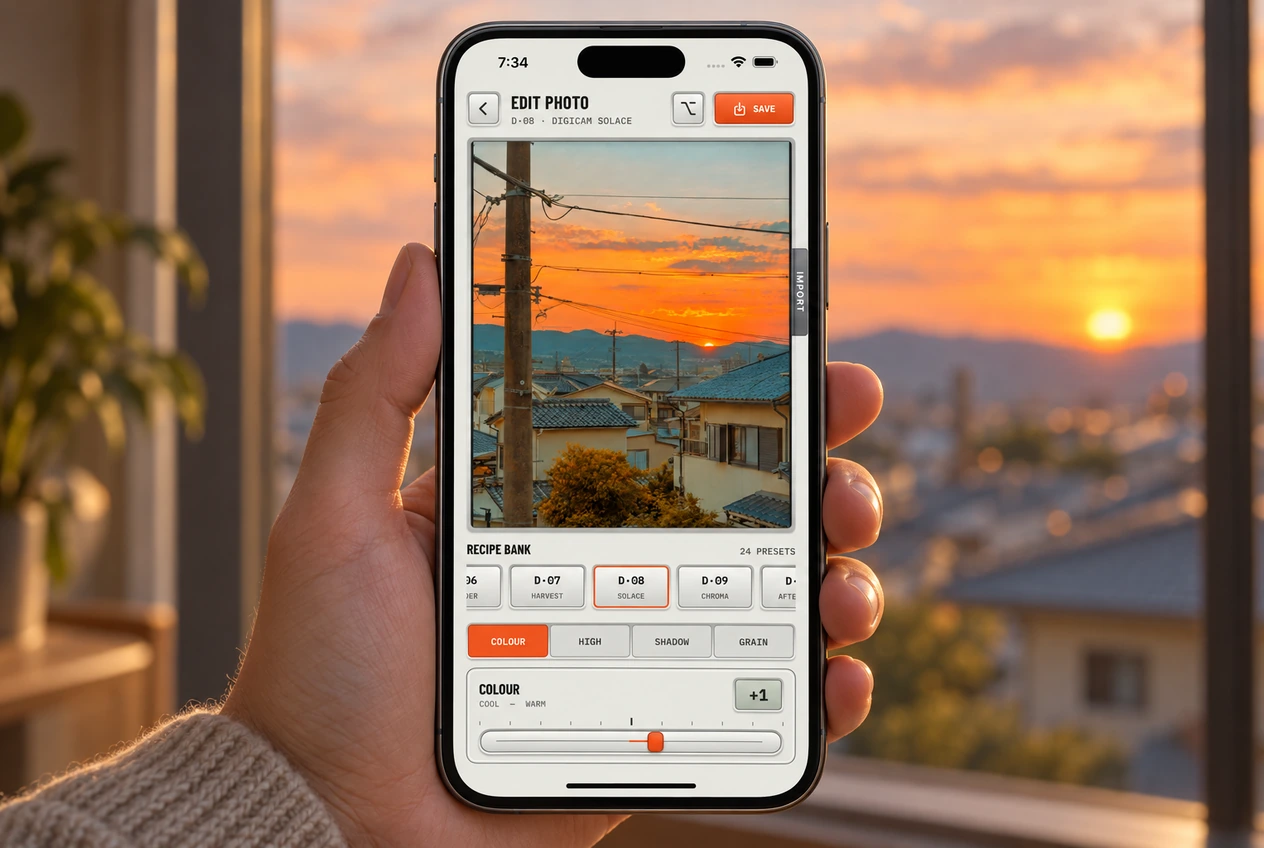
Open in Editor
Try another film or adjust a still photo. Save from the editor to make a new copy.
Copy Edit and Paste Edit
Copy a photo’s Digicam film and tuning, then apply them to another photo in the gallery.
Export Before / After
A short video of the reveal. See the sharing guide.

Give the set a shared look with Copy Edit

  1. Select the photo with the Digicam edit you want to reuse.
  2. Open Option and choose Copy Edit.
  3. Select the next photo, then choose Option and Paste Edit.
  4. Wait for the edit to apply, then check the result before moving on.

Paste Edit updates the selected photo’s edit. Unlike Save in the editor, it doesn’t create another copy. It’s useful for a set from the same afternoon, but check each image: the same tuning can look different in bright sun and deep shade. Use Open in Editor if one photo needs its own adjustment or you want to save an alternative.

Why an Option action might be unavailable

Open in Editor and Paste Edit work on still photos. Copy Edit needs a photo with Digicam edit information, and Paste Edit needs an edit copied first. Export Before / After also needs the original to have loaded for comparison. A video won’t offer the same editing actions as a photo.

To share the finished image or clip, choose Share. To show what changed in a still photo, use Export Before / After. You can do both from the same menu.