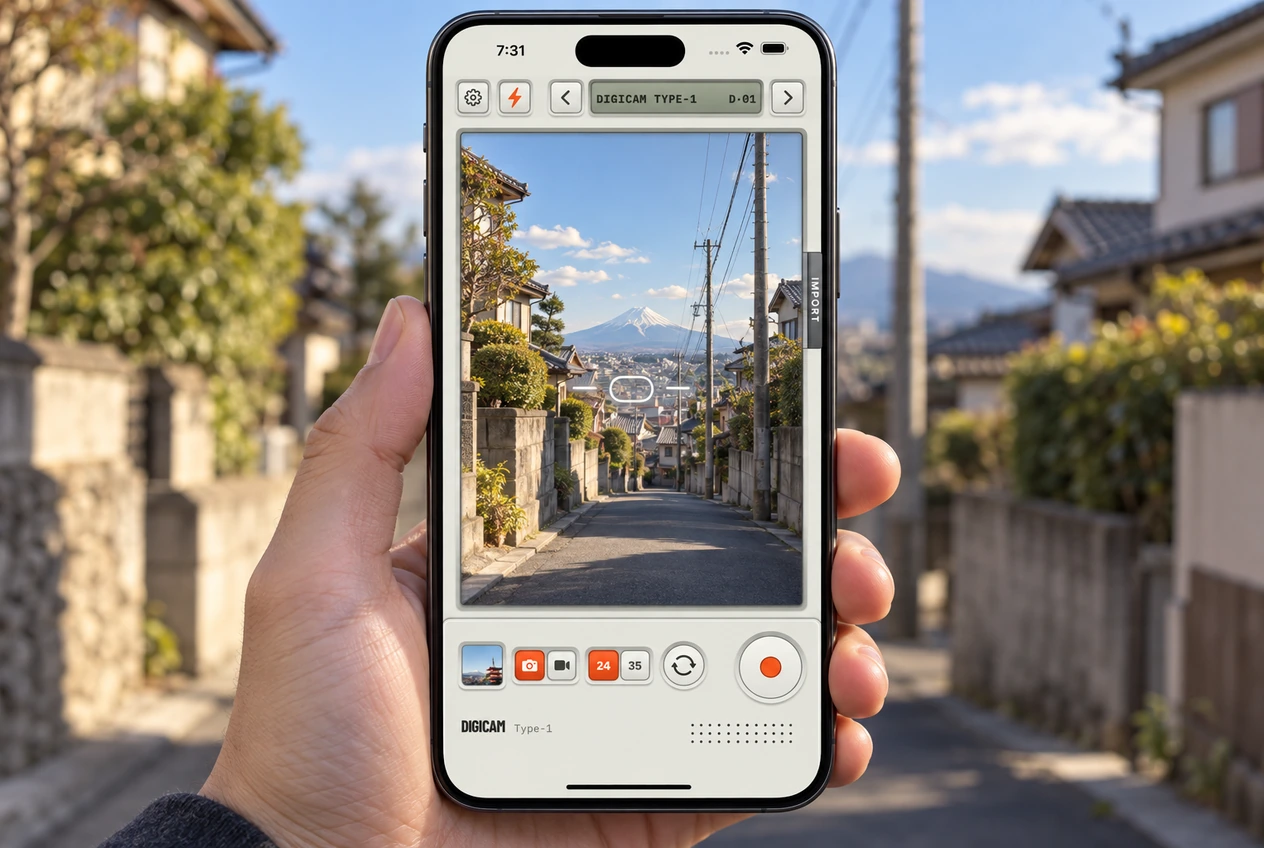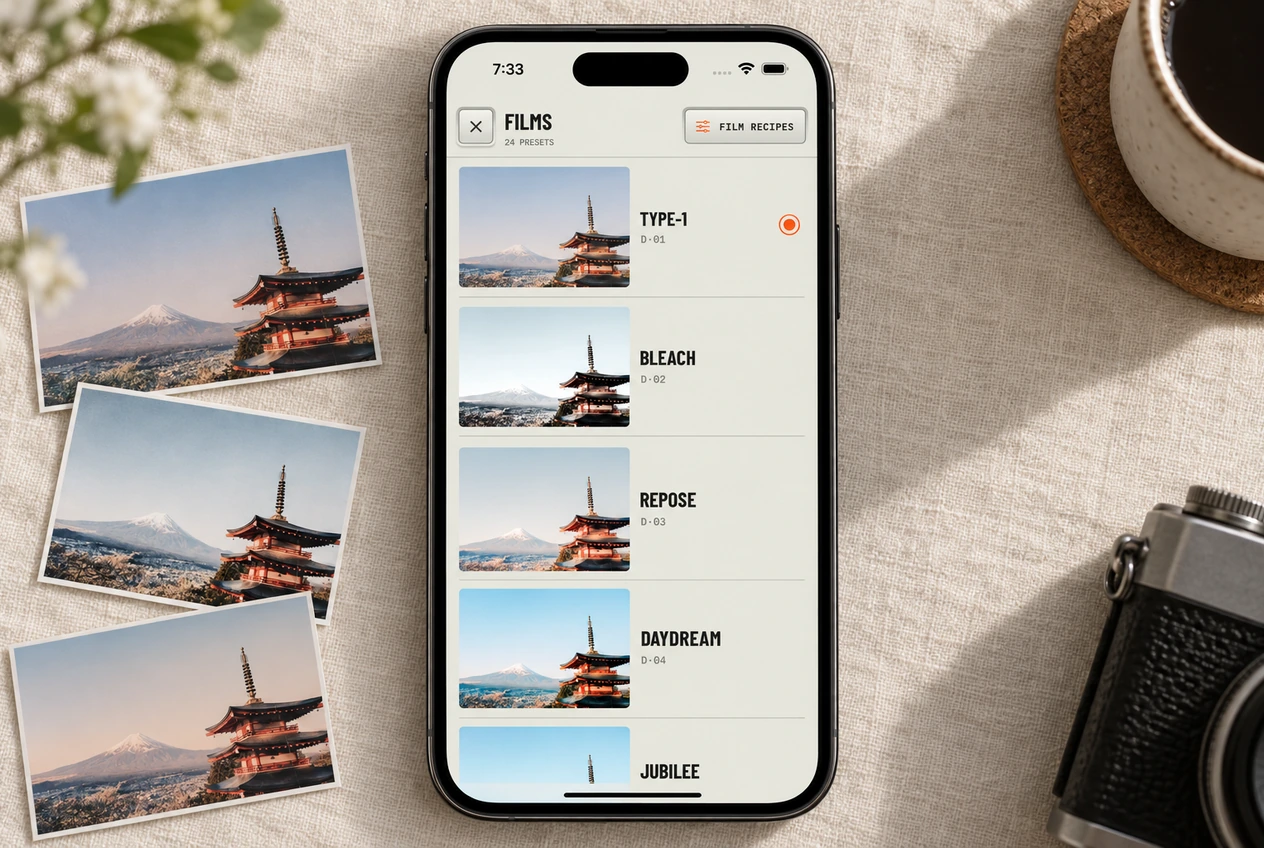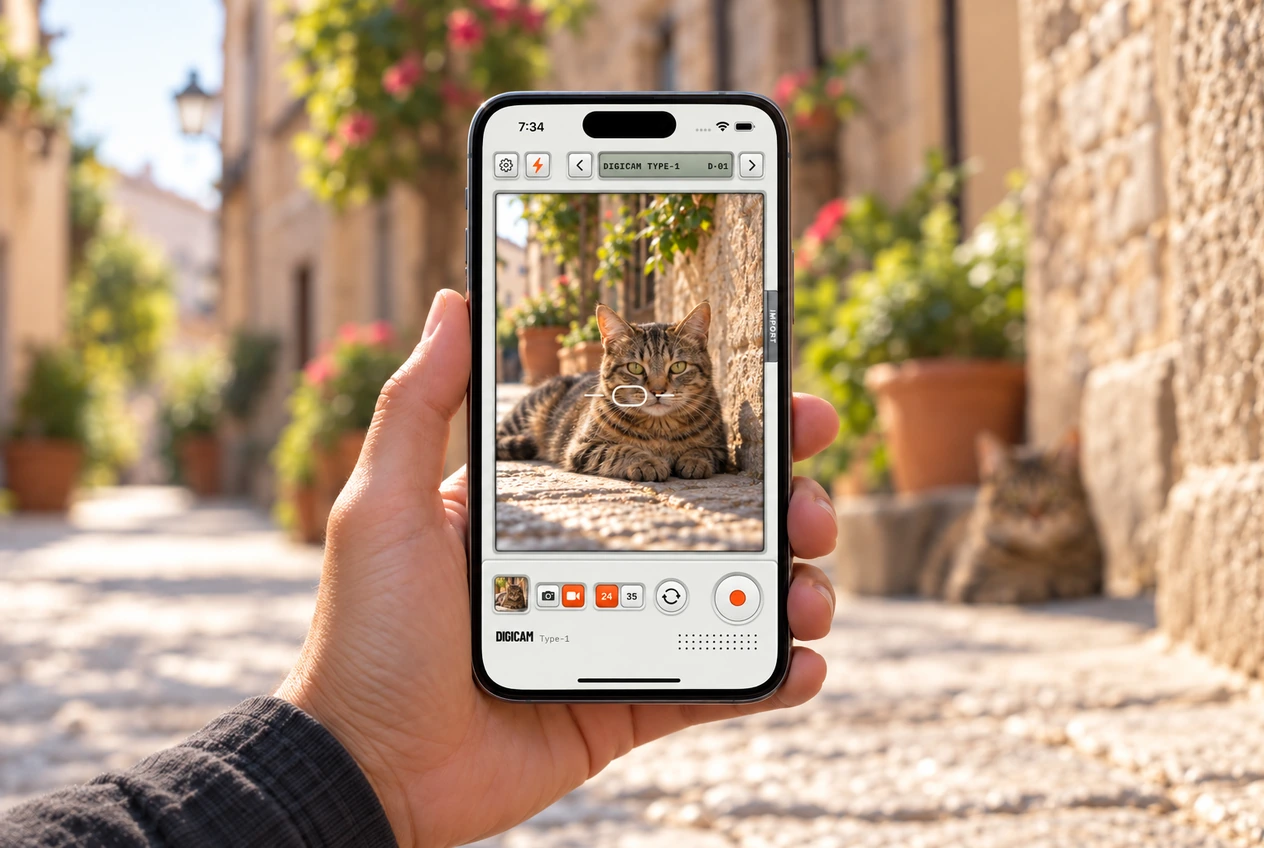
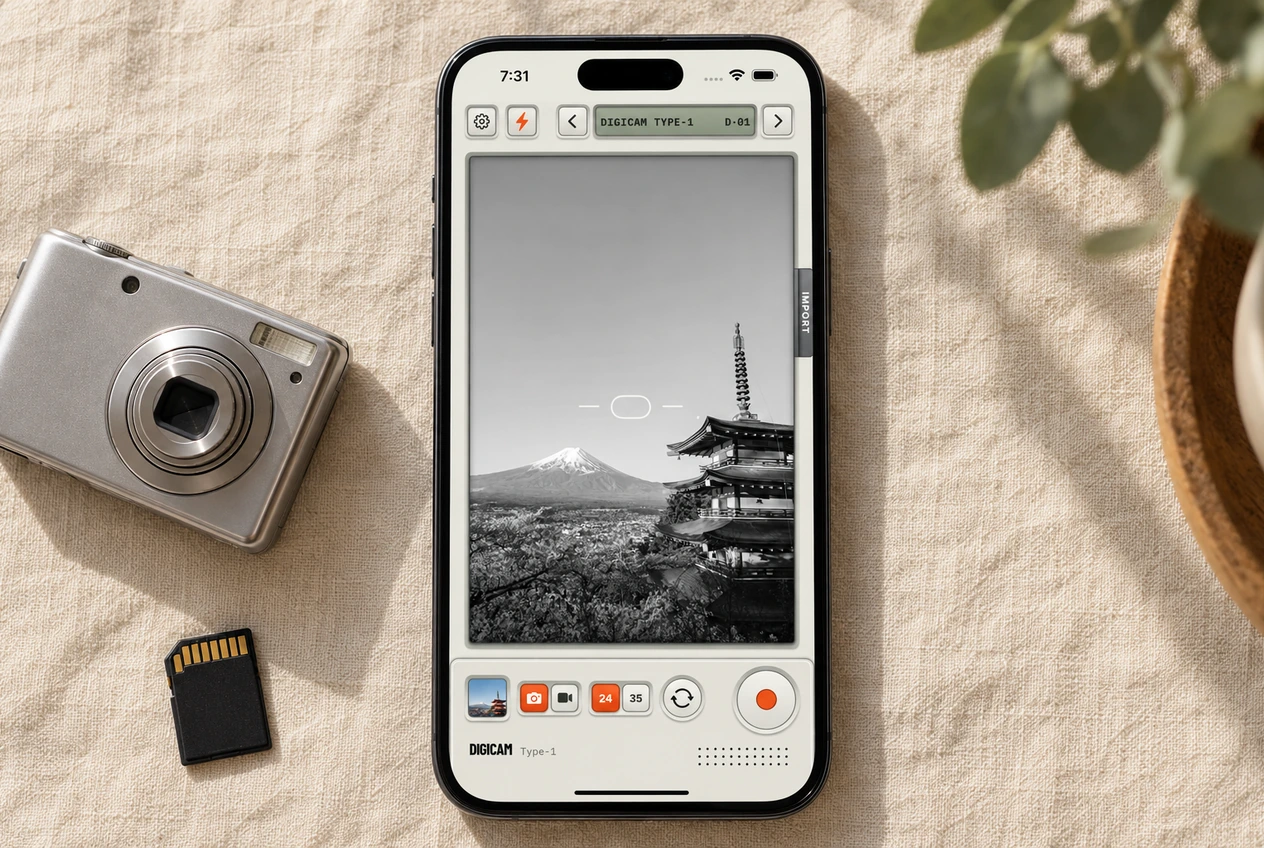
You know the photos: friends caught mid-laugh, a bright flash, the slightly wonky shot that somehow ends up first in the carousel. To try that digicam look on iPhone, choose a film in Digicam Type-1, keep some of the scene in frame and experiment with flash after dark. The color and grain are there before you press the shutter.
Why digicam photos are back on your feed
The compact-camera revival mixes early-2000s nostalgia with the appeal of a different-looking photo. In ABC’s reporting on the trend, young photographers point to strong flash, the social experience and the connection to older photos. That helps explain why a picture from an ordinary night out can feel worth keeping.
Part of the appeal is the separate camera itself. An iPhone app won’t give you that object or recreate every old camera’s lens and flash. What Digicam offers is a way to explore the look on the phone you already carry. The photos are ready in your library when you want to share them.
Pick the part of the aesthetic you like
Save a few reference photos and look at what they have in common. Is it a bright face against a dark background? Warm holiday color? Or a whole weekend told through little details? Those call for different choices. Turning up grain alone won’t turn a sunny landscape into a flash-lit party photo.
- For the night-out look: try a nearby subject with flash, leaving some of the darker room behind them. Compare one shot with the room’s light too.
- For the holiday diary: start with Type-1 or Chroma and shoot the journey as well as the destination. The ferry window can belong beside the beach.
- For the everyday photo dump: mix a person, a place and something small you noticed. A familiar film can give the set a shared feel.
Your first shot in Digicam Type-1
- Open the camera and start with Type-1. It gives you a useful point of comparison before you try the other films.
- Frame something familiar: a friend at a table, a shop window, the street on your walk home.
- Use 24 for a wider view or 35 for a tighter frame. Keep a little of the surroundings if they tell the story.
- Press the orange shutter, then tap the thumbnail to see the saved photo.
Try the same scene with one other film. That makes the difference easier to see than flicking through 24 looks while pointing at different things. The film guide will help you narrow it down, and the camera guide covers each button.
You can also compare the looks on the landing page before you choose a starting point.
Leave room for a candid shot
- Try flash on a nearby subject. Compare it with a shot using the room’s light. Flash gives a different feel; it won’t light a distant skyline.
- Leave some ordinary things in. The cups on the table or the corner of a street sign can be the part that makes the photo feel like your day.
- Keep the expression you like. A little movement or tilt can suit a candid shot. You don’t need to add blur or keep a frame where you can’t see anyone.
- Judge grain at posting size. Zoom in to inspect it, then look at the whole photo. Texture should still leave room for the moment.
Already took the photo?
Use Import to try the same films on a photo from your library. Start with the least edited version you have, so you can see what the film adds. Follow the old-photo editing guide to compare it with the original and save a new copy.