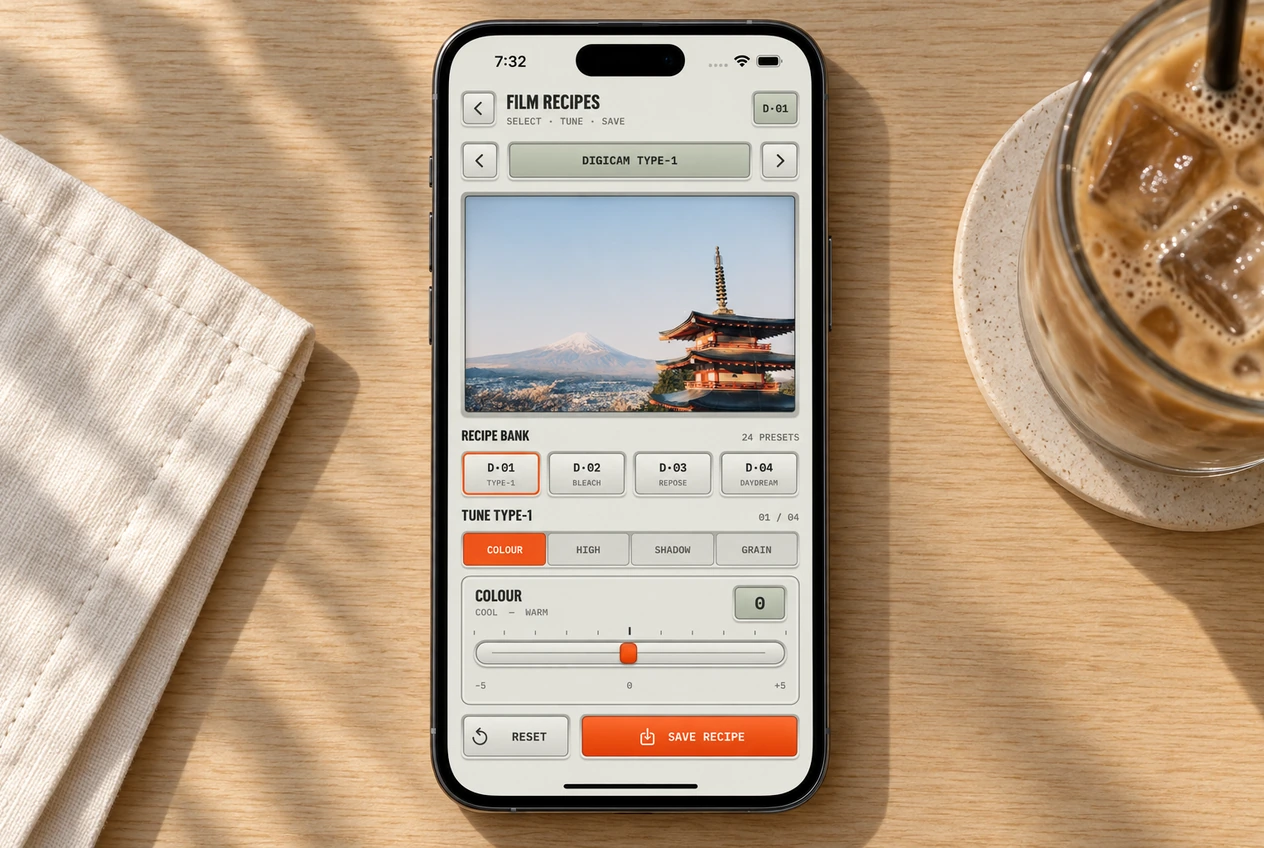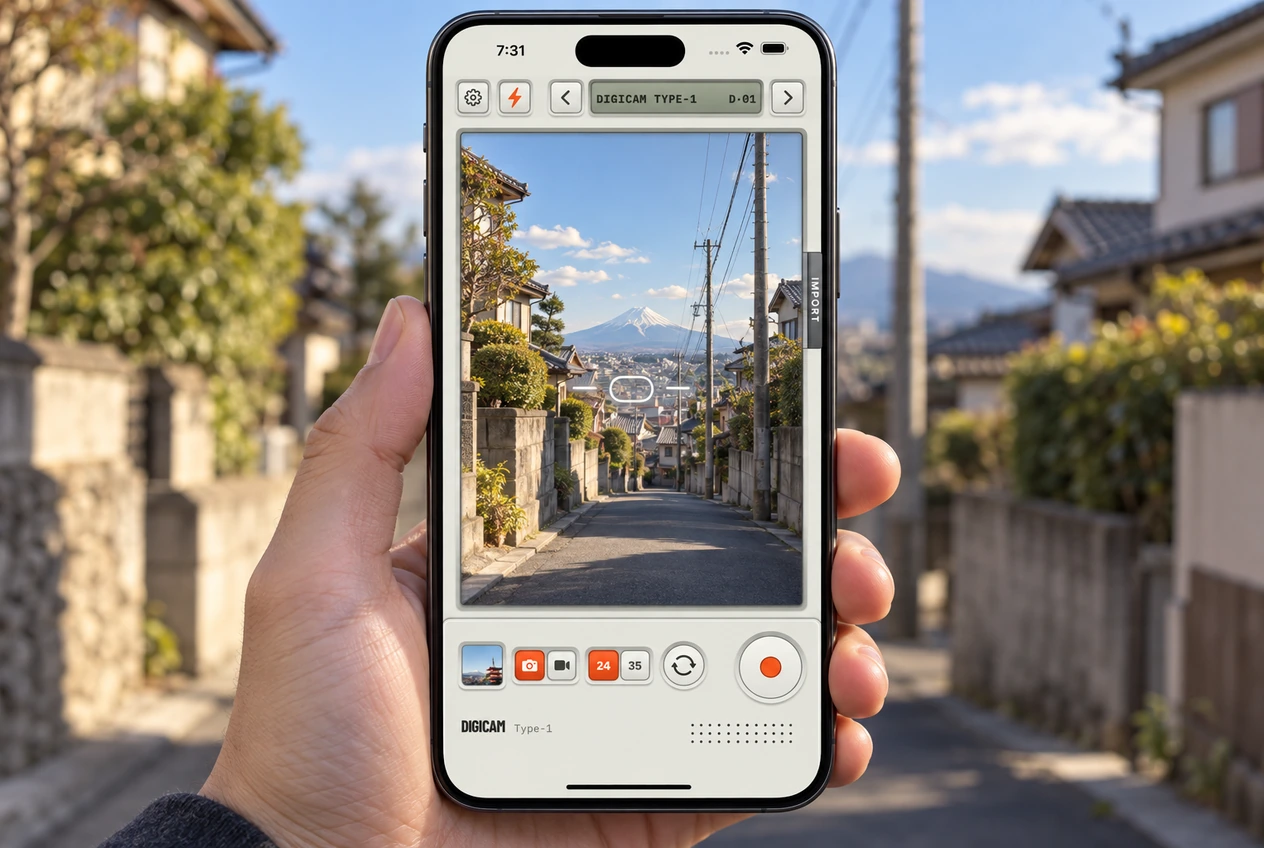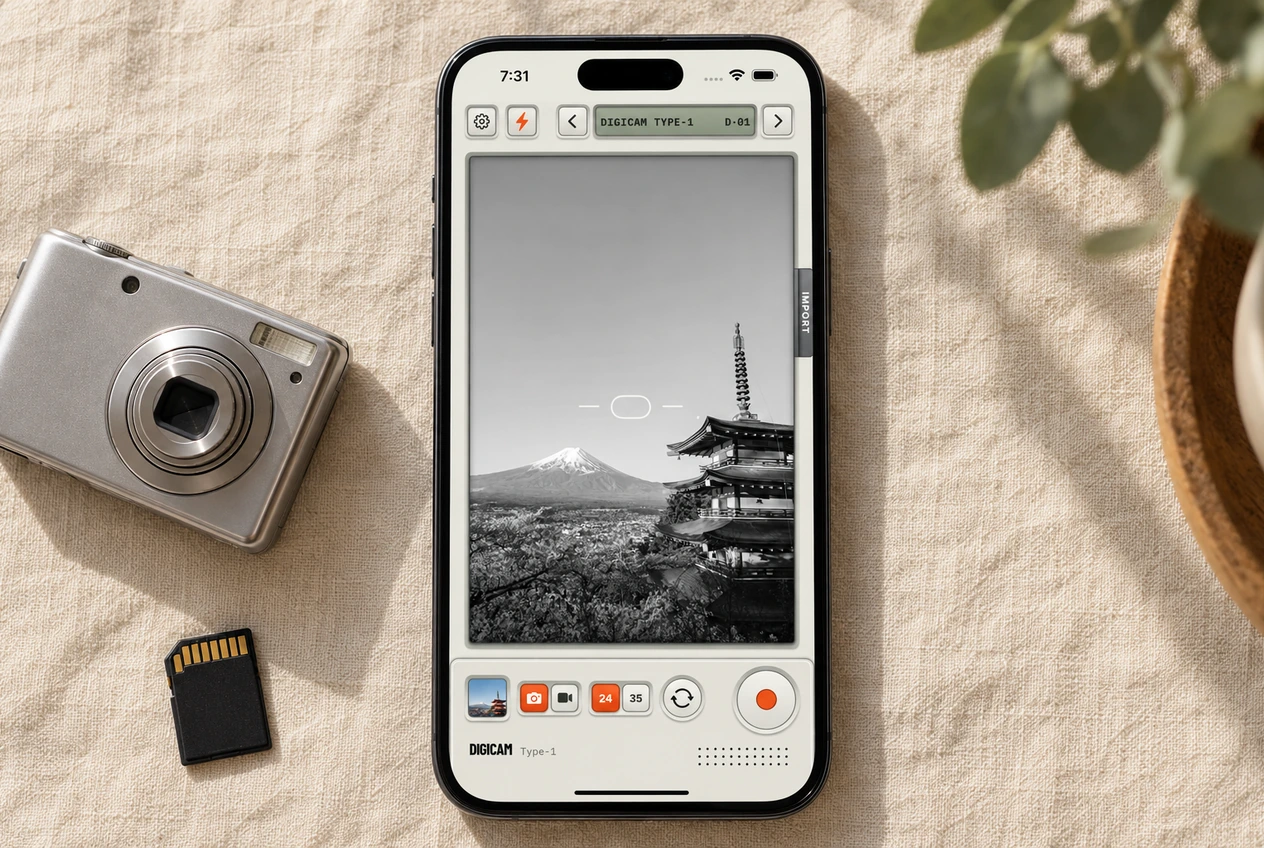
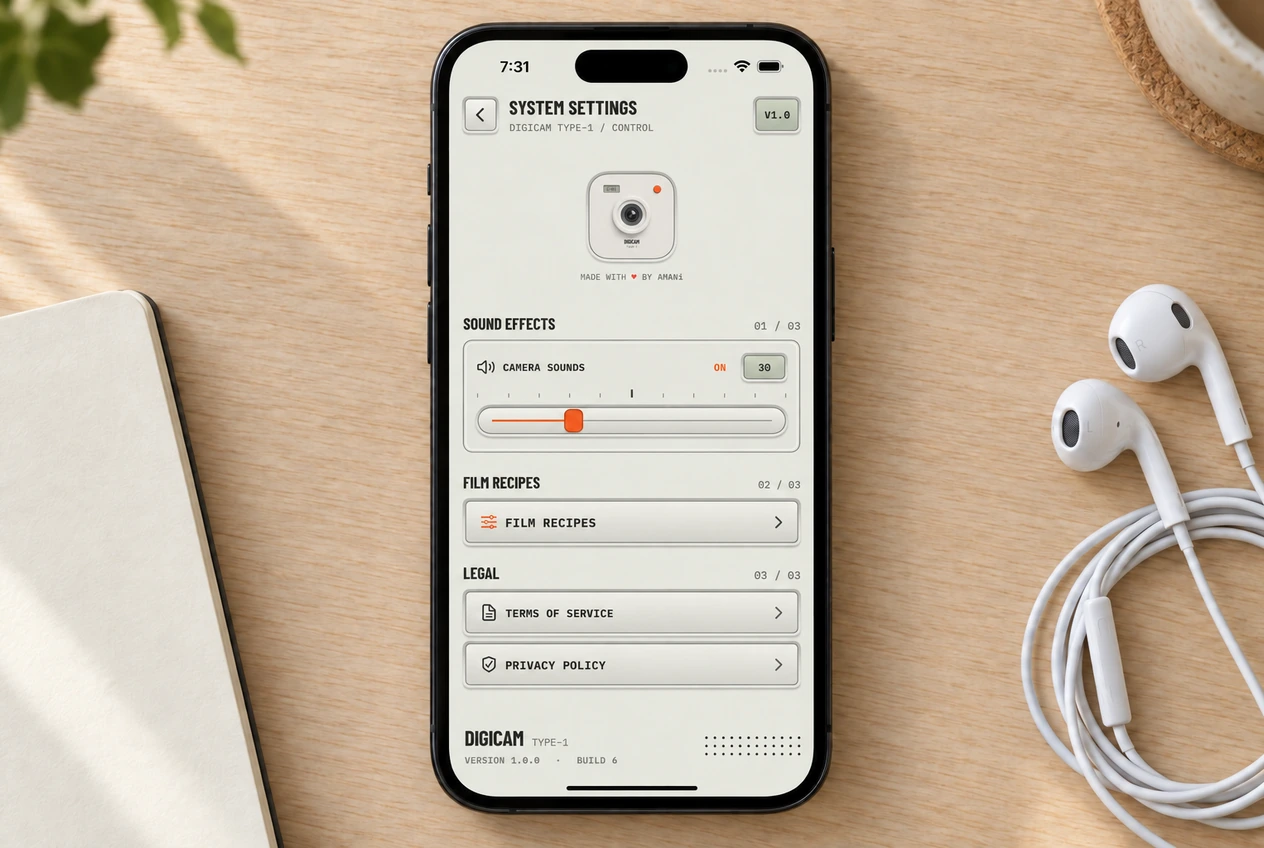
Tap the gear at the top left of the camera to adjust Digicam’s sounds or open Film Recipes. Set things up before the birthday dinner or weekend away, so your first group shot doesn’t turn into a permissions detour. Camera, microphone and Photos access live in your iPhone’s Settings app.
A quick check before you head out
Take a test photo and open it in the gallery. If you’re planning to record little clips from the night, record one and play it back with sound. Pick a film you can start with, then set the camera clicks to a volume that suits where you’re going. That’s enough setup to get on with taking pictures.
Turn down the shutter and button sounds
Open the gear, find Sound Effects and move the camera sounds slider down. At zero, Digicam’s own shutter and button effects are muted. Leave it partway up if you like the clicks but want them quieter. The setting is remembered, so you don’t need to adjust it every time you open the app.
This controls the app’s sound effects. It isn’t a microphone recording switch, and it doesn’t remove the soundtrack built into a before-and-after export. Camera clicks, recorded audio and the export soundtrack do different jobs.
What each permission is for
- Camera
- To show the viewfinder and shoot.
- Microphone
- To capture sound in video mode. Taking a still photo does not need it.
- Photo library
- To save your photos and clips, load the gallery, and update edits or favorites in Photos.
If you denied access earlier
- Open the iPhone Settings app.
- Go to Privacy & Security and choose Camera, Microphone or Photos, depending on the feature.
- Find Digicam and review its access, then return to the app and try again.
With limited Photos access, Digicam can only work with the library items iOS makes available to it. If a photo is missing from the gallery, check that access before assuming it was deleted. Apple’s guide to app permissions explains how to review and change these settings.
What stays on your phone, and what can sync
Digicam processes photos and videos on your iPhone and saves them to your Photos library. There’s no Digicam account to create and no upload to a Digicam server for the film effect or reveal export.
Your saved film recipe settings can sync through Apple’s iCloud, with a local copy available on the phone. Photos in your library can also sync through iCloud Photos if you use it. And when you choose Share, you decide which app or service receives the file. On-device processing doesn’t turn off those choices.
Recipes and the small print
Film Recipes opens the controls for your saved looks. The recipe guide covers tuning and resetting them. Terms and the privacy policy are under Legal on the same settings screen. For help finding your saved shots, see the gallery guide.